How to connect a Tizen device to an installation
Tizen is only supported for signage applications. Tizen versions 4, 6.5, 7, and 8 are supported. Before you begin, make sure your network allows access to *.phygrid.com
In Console
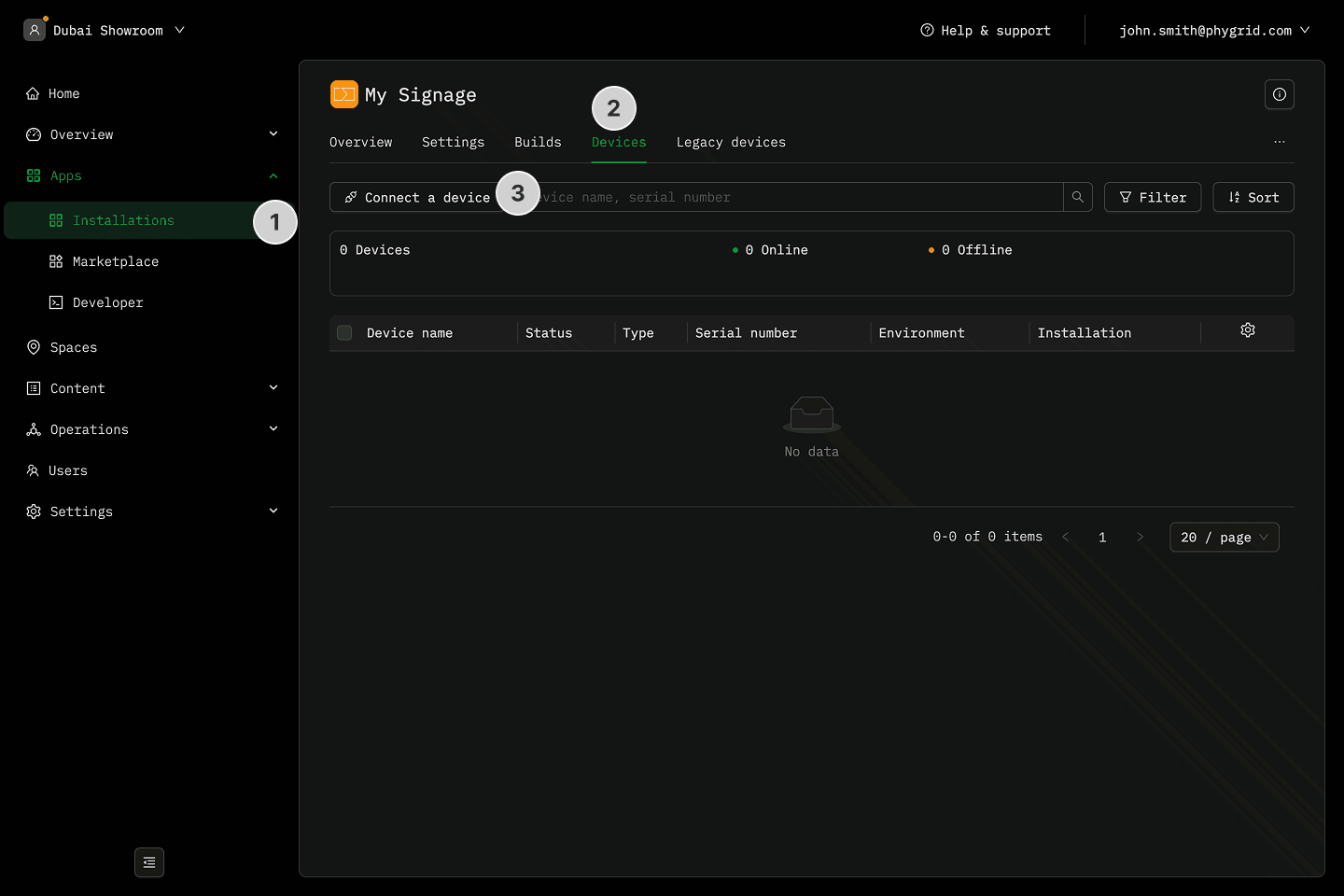
- Navigate to Apps → Installations
- Find your installation, open, and go to Devices tab
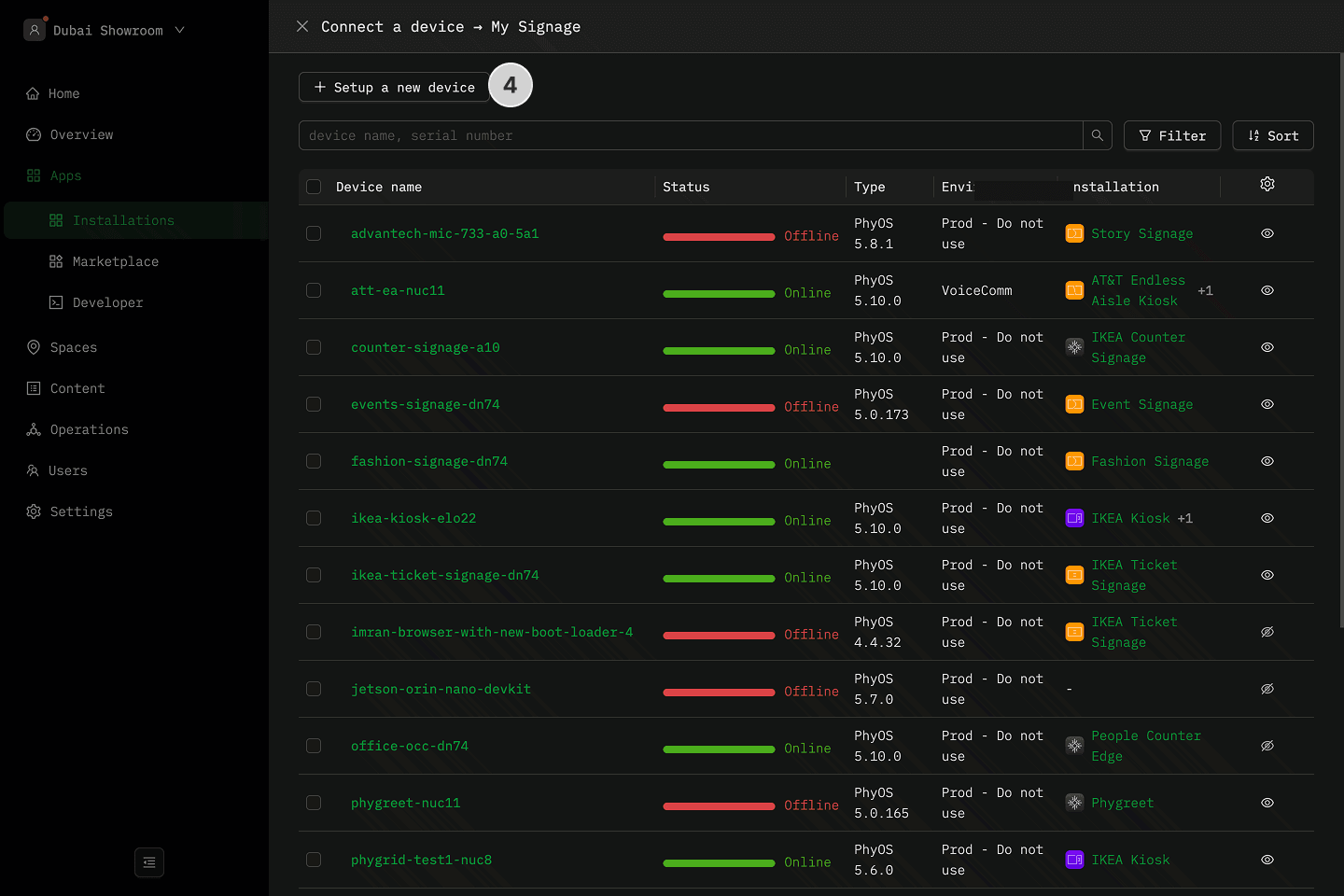
- Click Connect a device
- Click Setup a new device
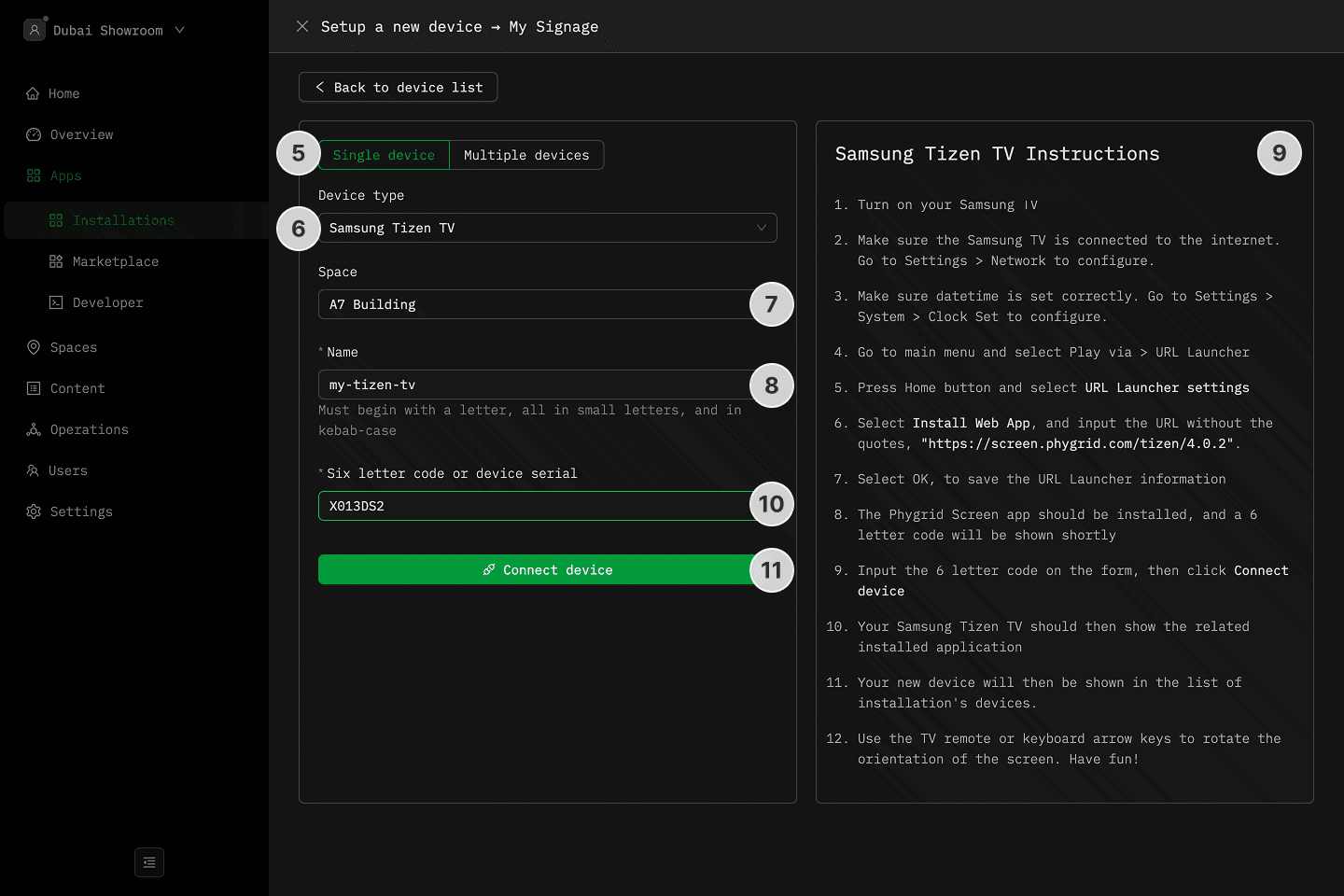
- Select the Single Device mode
- Select Tizen TV as the device type
- Assign the device to a Space
- Name the device
- Follow the steps on the TV to generate the 6-character code on the TV
- Turn on your Samsung TV
- Make sure the Samsung TV is connected to the internet. Go to Settings > Network to configure.
- Make sure datetime is set correctly. Go to Settings > System > Clock Set to configure.
- Go to main menu and select Play via > URL Launcher
- Press Home button and select URL Launcher settings
- Select Install Web App, and input the URL without the quotes, "https://screen.phygrid.com/tizen/4.0.2".
- Select OK, to save the URL Launcher information
- The Phygrid Screen app should be installed, and a 6 letter code will be shown shortly
- Enter the code from the TV to Six letter code or device serial
- Click Connect the device
Once connected, the device will load the application and its content.
Use the TV remote or keyboard arrow keys to rotate the orientation of the Tizen TV screen