
Install PhyOS on Advantech MIC-733-A05A1
Overview
Section titled “Overview”This guide walks you through installing PhyOS 5 on the Advantech MIC-733-A05A1 device.
The Advantech MIC-733-A05A1 is a compact embedded computer designed for industrial applications.
Prerequisites
Section titled “Prerequisites”For PhyOS installation
Section titled “For PhyOS installation”- microSD card (minimum 16GB, Class 10 or better recommended)
- microSD card reader
- Computer running Windows, macOS, or Linux (for flashing PhyOS to SD card)
- HDMI display or DisplayPort monitor
- USB keyboard
- Small screwdriver (to access SD card slot)
- Internet connection
Install PhyOS
Section titled “Install PhyOS”You can now install PhyOS to the device’s internal drive.
Download and prepare installation media
Section titled “Download and prepare installation media”- Download the latest PhyOS installer for Advantech MIC-733-A05A1
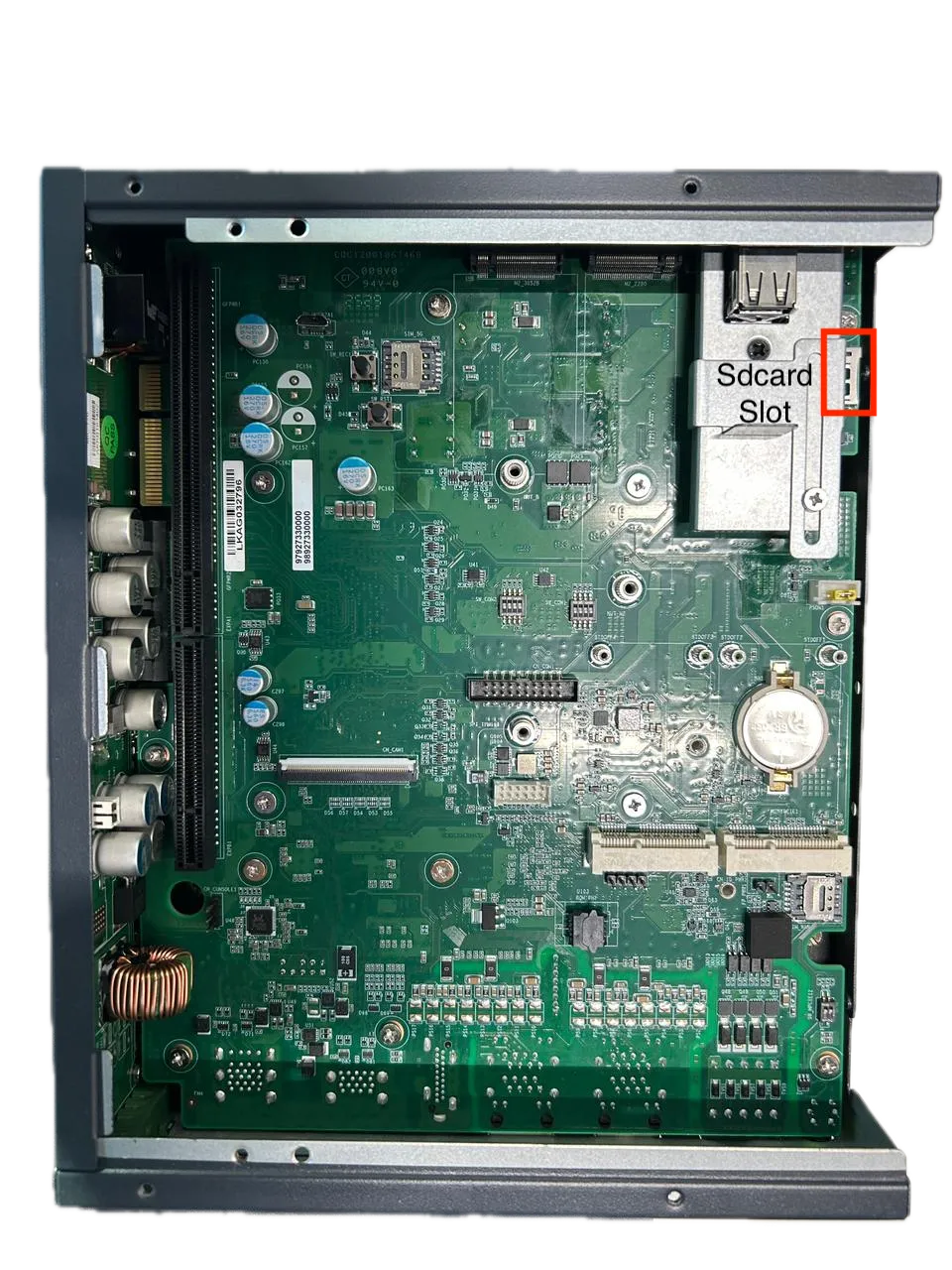
- Remove the bottom cover of the device and insert the microSD card into the SD card slot as shown in the image
- Write the PhyOS image to a microSD card using Balena Etcher or Raspberry Pi Imager
Install PhyOS to internal drive
Section titled “Install PhyOS to internal drive”- Power off the Advantech MIC-733-A05A1 completely and disconnect power
- Insert the prepared microSD card into the device
- Connect your HDMI display or DisplayPort monitor
- Connect a USB keyboard (required for installation)
- Reconnect power to perform a cold boot
- Immediately press F11 at startup to open the boot menu
- Select the SD card from the boot menu using arrow keys
- Press Enter to boot from the SD card
- Follow the on-screen instructions to flash the internal drive with PhyOS
- The installer will guide you through the process
- This writes PhyOS to the device’s internal storage
- Wait for the installation to complete
- When prompted that installation is successful, power off the device
- Disconnect power and remove the microSD card
- Reconnect power - the device will now boot PhyOS from internal storage
Connect device to PhyStack
Section titled “Connect device to PhyStack”After PhyOS boots from internal storage:
- You should see the PhyOS splash screen
- The device will display a connection screen
- Note the Serial Number displayed in the top-left corner of the screen
- In the PhyStack portal, navigate to the device connection section
- Enter the Serial Number in the Device Serial field
- Click the Connect device button
- The device will appear under Installations → Devices
Troubleshooting
Section titled “Troubleshooting”PhyOS installation issues
Section titled “PhyOS installation issues”F11 boot menu doesn’t appear
Section titled “F11 boot menu doesn’t appear”- Ensure you press F11 immediately at startup
- Try pressing F11 repeatedly during boot
- Verify the device supports the F11 boot menu key
Device won’t boot from microSD card
Section titled “Device won’t boot from microSD card”- Verify the microSD card is fully inserted into the SD card slot
- Press F11 and manually select the SD card from the boot menu
- Try re-flashing the PhyOS image to the SD card using Balena Etcher
- Test with a different microSD card
- Check that you downloaded the correct version of PhyOS for MIC-733-A05A1
Installer doesn’t appear after selecting SD card
Section titled “Installer doesn’t appear after selecting SD card”- Verify the PhyOS image was written successfully to the SD card
- Check that your display is connected properly
- Ensure your keyboard is connected (required for installation)
- Try a different microSD card
Installation to internal drive fails or freezes
Section titled “Installation to internal drive fails or freezes”- Ensure the device has adequate ventilation
- Check that there’s sufficient space on the internal drive
- Wait at least 15 minutes before intervening (installation can be slow)
- Check that all internal cables are properly connected
Cannot locate SD card slot
Section titled “Cannot locate SD card slot”- The SD card slot is located on the main board inside the device
- You must unscrew and remove the bottom cover to access it
- The slot is typically labeled “Sdcard Slot” on the board
- Refer to the device documentation or image for exact location
Device-specific notes
Section titled “Device-specific notes”Installation media
Section titled “Installation media”The MIC-733-A05A1 uses a microSD card for PhyOS installation. The card is only required for the installation process and should be removed once PhyOS is installed to the internal drive.
Boot method
Section titled “Boot method”The MIC-733-A05A1 uses the F11 boot menu to select the installation media during setup.
Network configuration
Section titled “Network configuration”The Advantech MIC-733-A05A1 includes network connectivity options that may vary by model.
After PhyOS installation, you can configure network settings through the PhyStack console.
Display outputs
Section titled “Display outputs”The MIC-733-A05A1 offers multiple display outputs:
- HDMI
- DisplayPort
Use the output that matches your display connection.
Accessing internal components
Section titled “Accessing internal components”To access the SD card slot for installation or for maintenance:
- Power off the device completely
- Disconnect all cables
- Use a small screwdriver to remove the bottom cover screws
- Carefully lift the bottom cover to access the main board
- Locate the SD card slot on the board
- After completing work, reattach the bottom cover securely
Important notes
Section titled “Important notes”- Remove the microSD card after installation is complete - the device will boot from its internal drive
- The SD card slot is only needed during the installation process
- Ensure proper ventilation during installation to prevent overheating
- Keep your PhyOS installer image in a safe location in case you need to reinstall in the future