Connect multiple new devices to an installation
How to connect multiple new devices to an installation
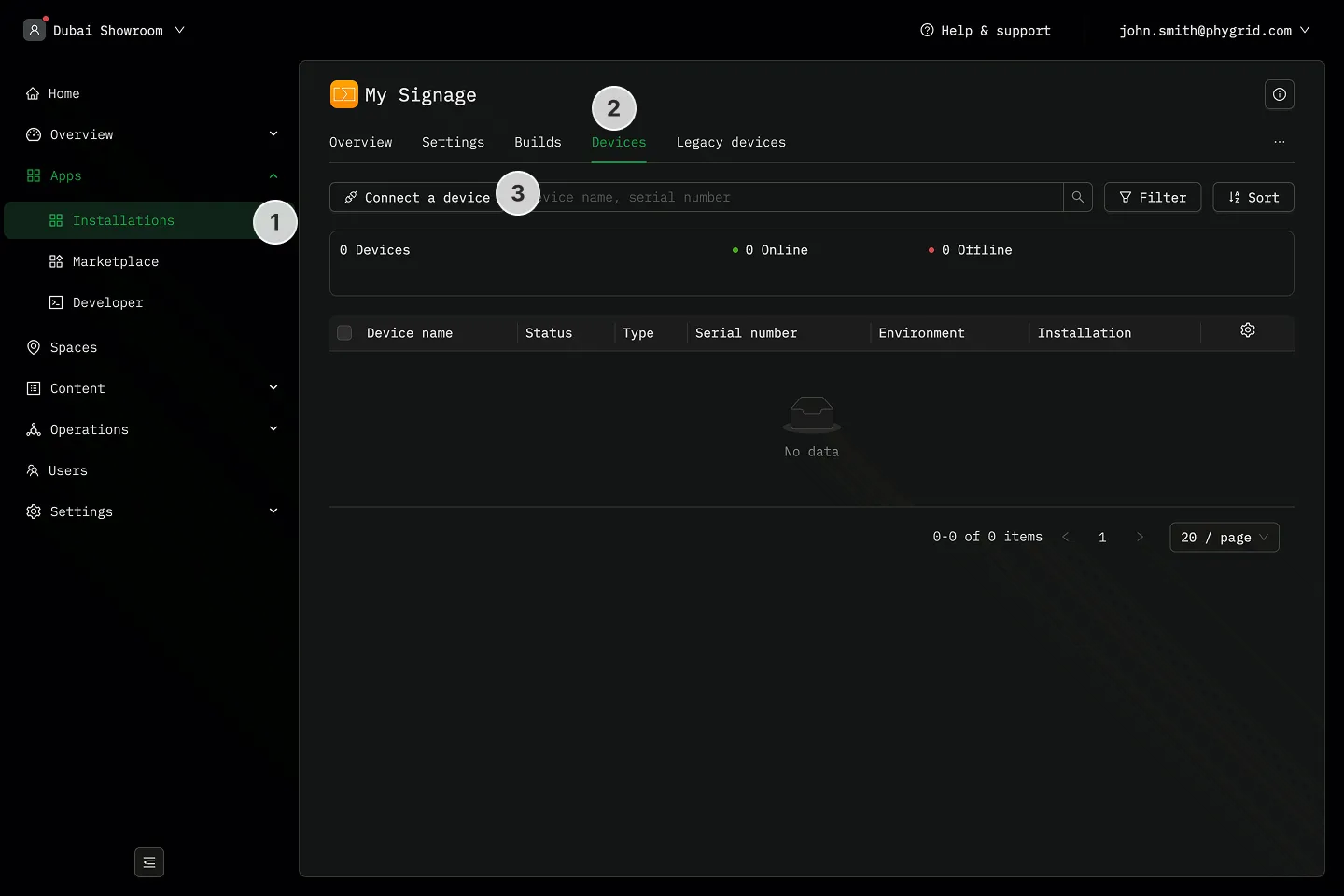
Section titled “How to connect multiple new devices to an installation”- Navigate to Apps → Installations
- Find your installation, open, and go to Devices tab
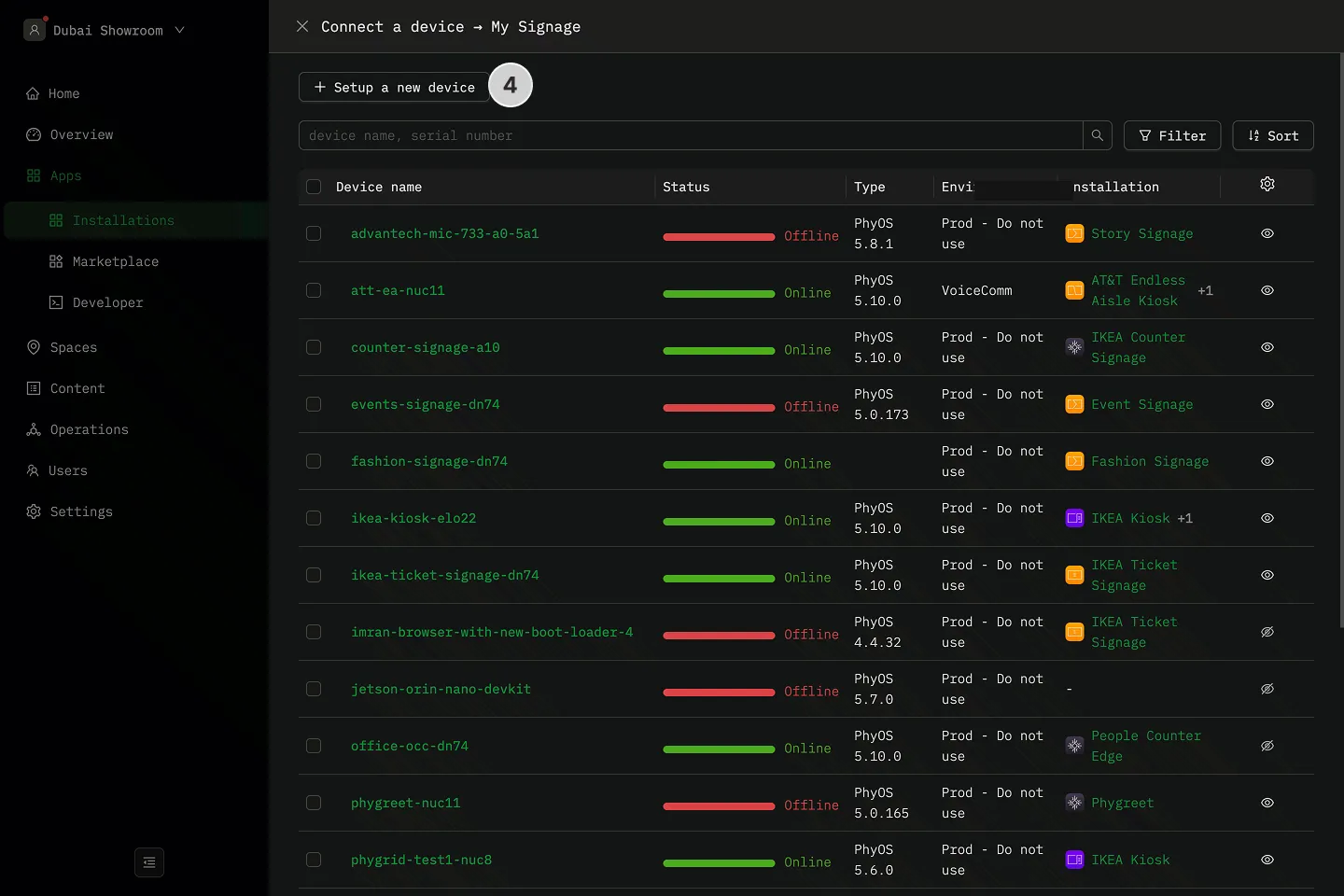
- Click Connect a device
- Click Setup a new device
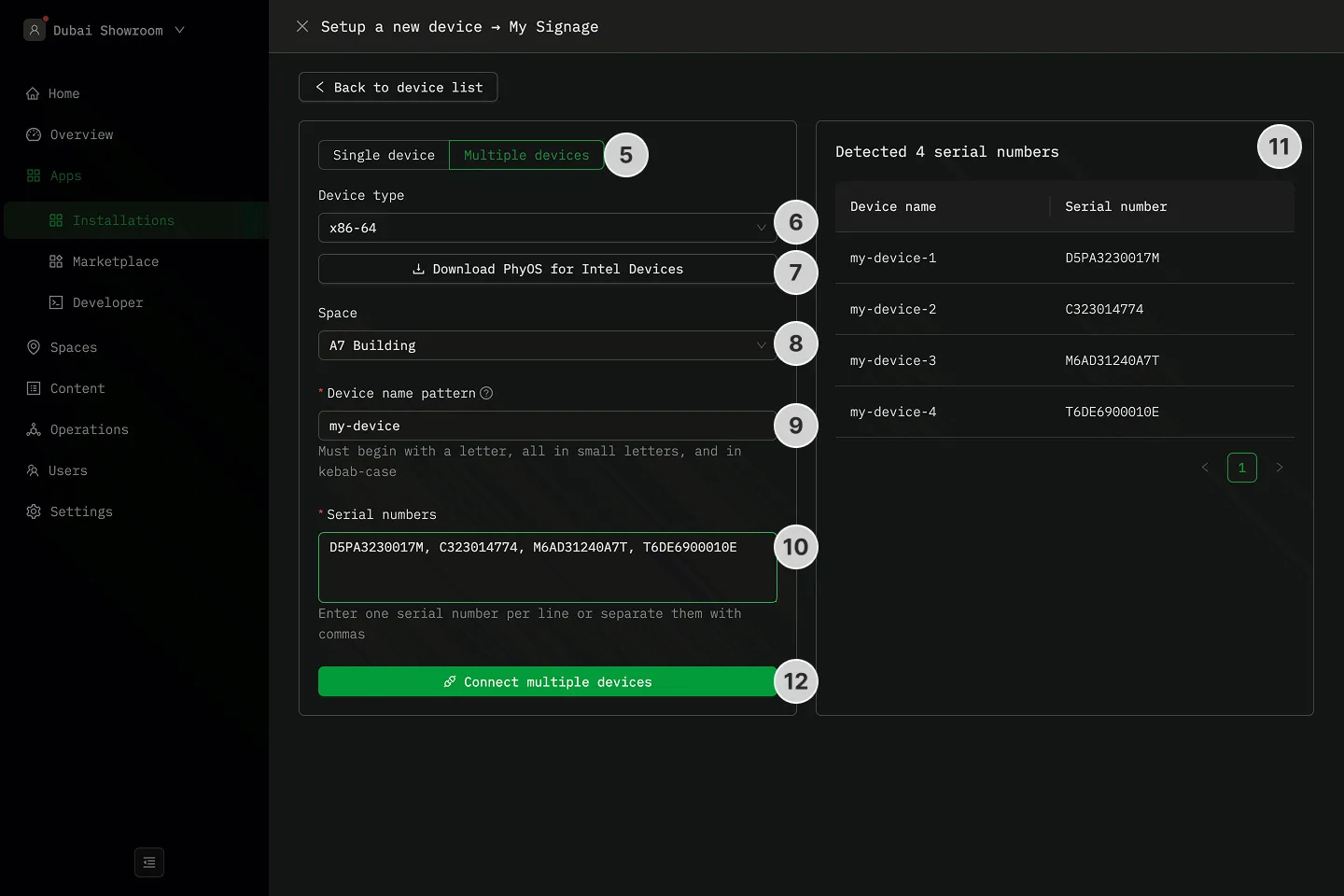
- Change the mode from Single device to Bulk devices
- Select the device type
- For Intel or AMD devices, leave the x86-64 option
- For other hardware, choose the appropriate option
- Ensure the device is running PhyOS and is connected to the internet
- If using a PhyStack device, it should come preinstalled with PhyOS
- For custom devices, install PhyOS, then connect to the internet
- Pick a Space for your device or leave it in the Default Space
- Device name pattern will be used as a prefix for device names. Each device will be suffixed with a number (e.g. device-1, device-2)
- Enter the serial numbers of the devices you want to connect. Either one per line or comma-separated
- Your device name and serial number pairs will be displayed for reference. You can add a maximum of 50 devices at a time
- Click Connect multiple device
Once connected, your devices will load the application and its content.