Connect a Tizen device to an installation
How to connect a Tizen device to an installation
Section titled “How to connect a Tizen device to an installation”In Console
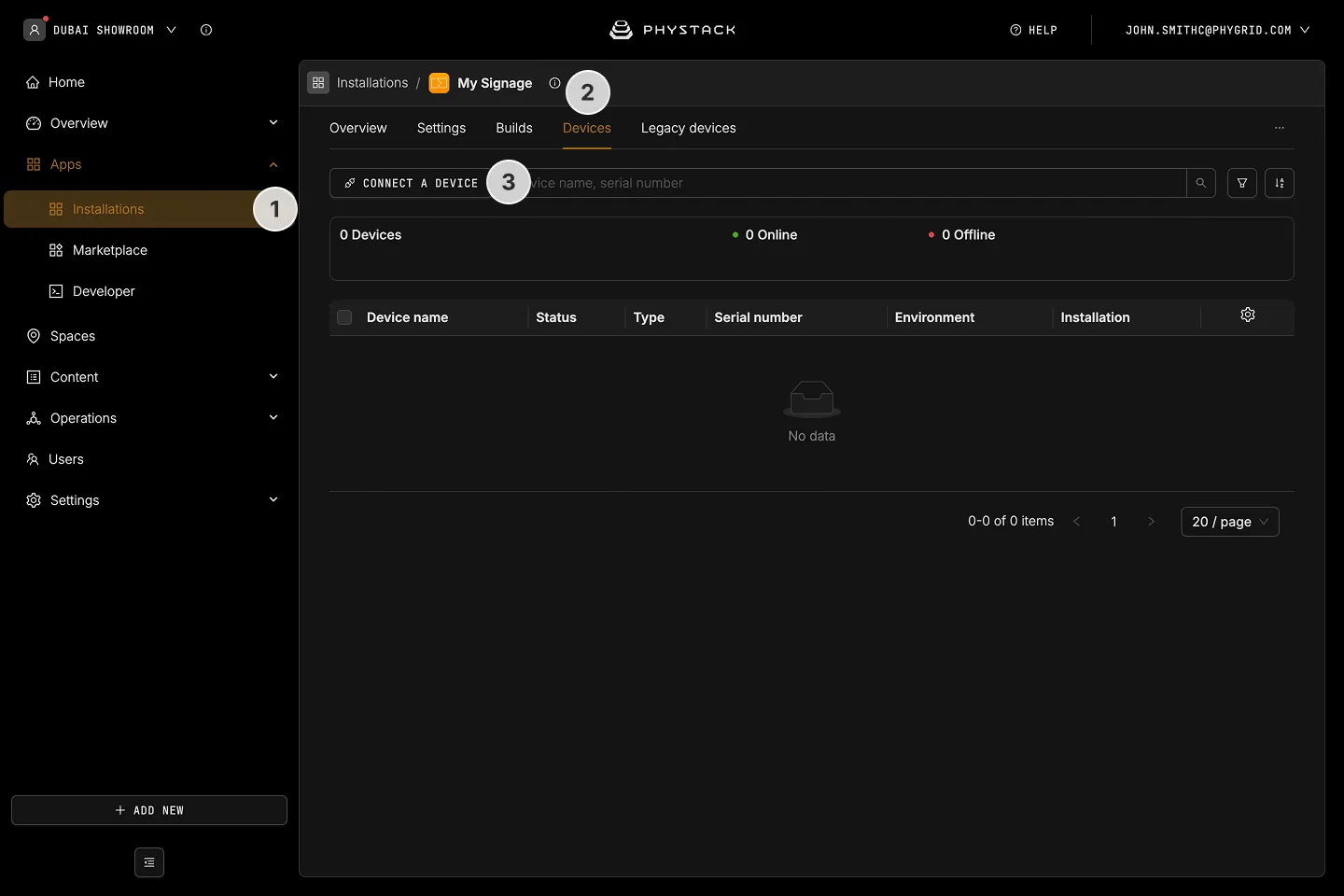
- Navigate to Apps → Installations
- Find your installation, open, and go to Devices tab
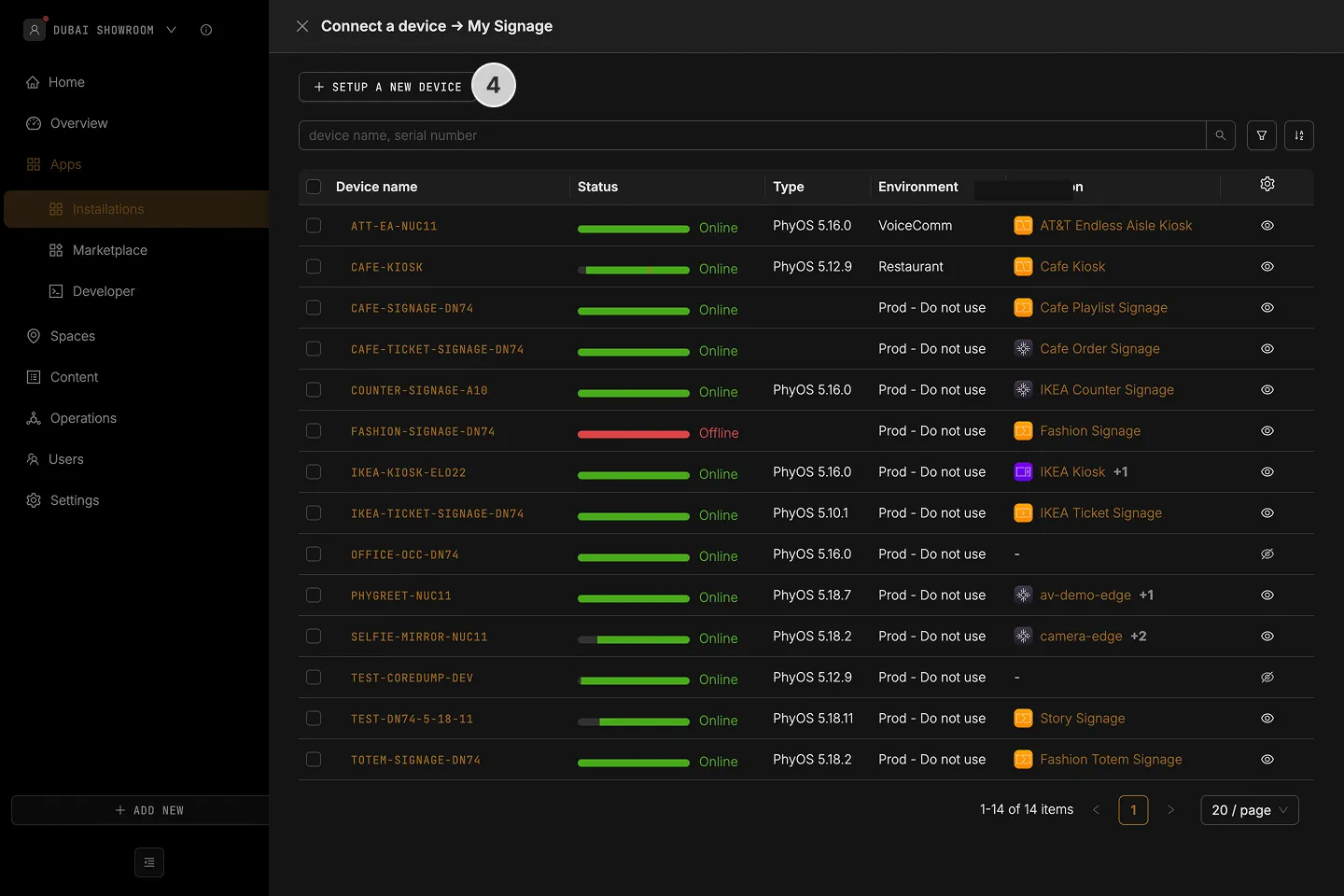
- Click Connect a device
- Click Setup a new device
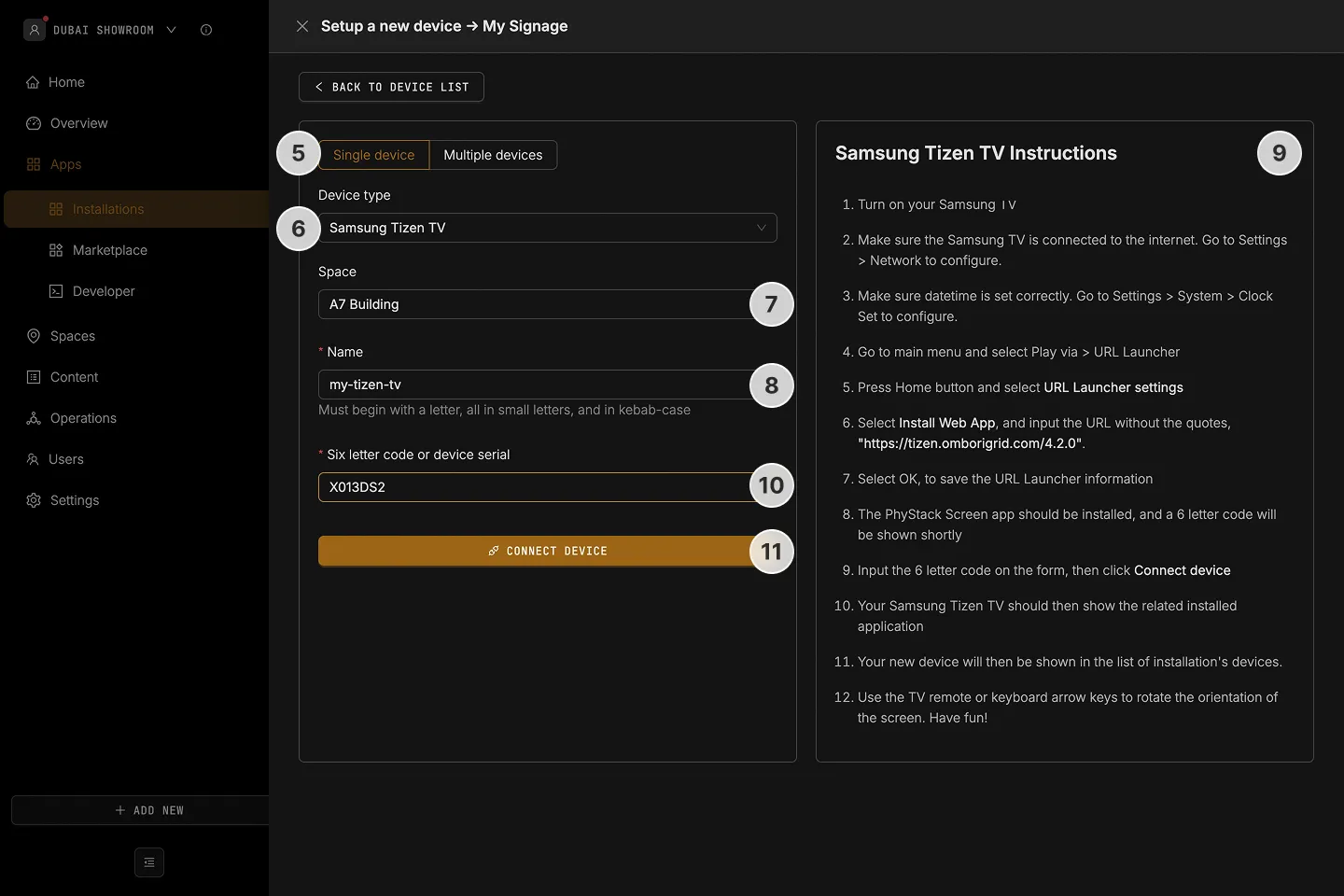
- Select the Single Device mode
- Select Tizen TV as the device type
- Assign the device to a Space
- Name the device
- Follow the steps on the TV to generate the 6-character code on the TV
- Turn on your Samsung TV
- Make sure the Samsung TV is connected to the internet. Go to Settings > Network to configure.
- Make sure datetime is set correctly. Go to Settings > System > Clock Set to configure.
- Go to main menu and select Play via > URL Launcher
- Press Home button and select URL Launcher settings
- Select Install Web App, and input the URL:
https://screen.phygrid.com/tizen/4.2.0
- Select OK, to save the URL Launcher information
- The Phygrid Screen app should be installed, and a 6 letter code will be shown shortly
- Enter the code from the TV to Six letter code or device serial
- Click Connect the device
Once connected, the device will load the application and its content.