
Install PhyOS on an x86-64 (Intel/AMD) device
How to prepare installation media
Section titled “How to prepare installation media”- Download the latest version of PhyOS 5 for x86-64 devices
- Download and install Raspberry Pi Imager
- Connect a USB flash drive to your computer
- Open Raspberry Pi Imager
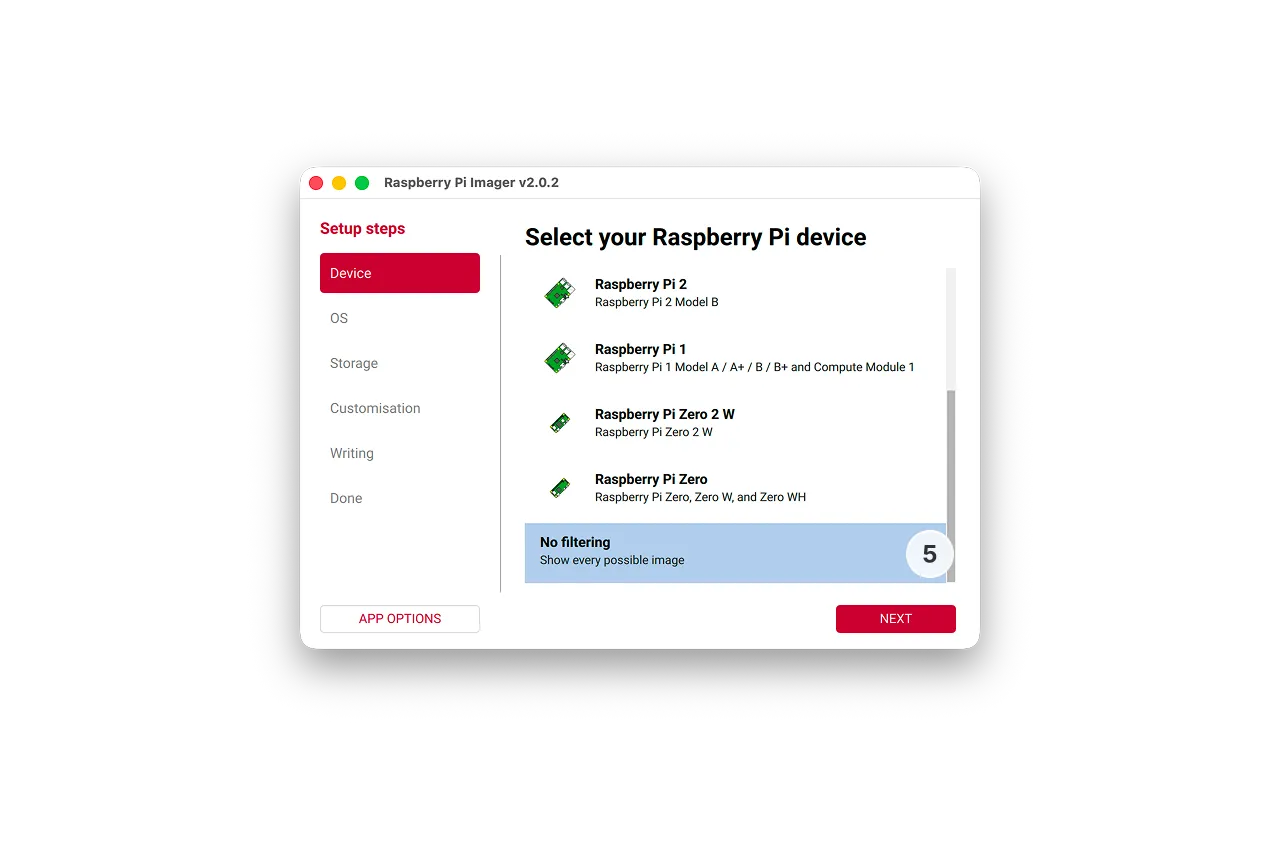
- In the Device tab,select No filtering and click Next
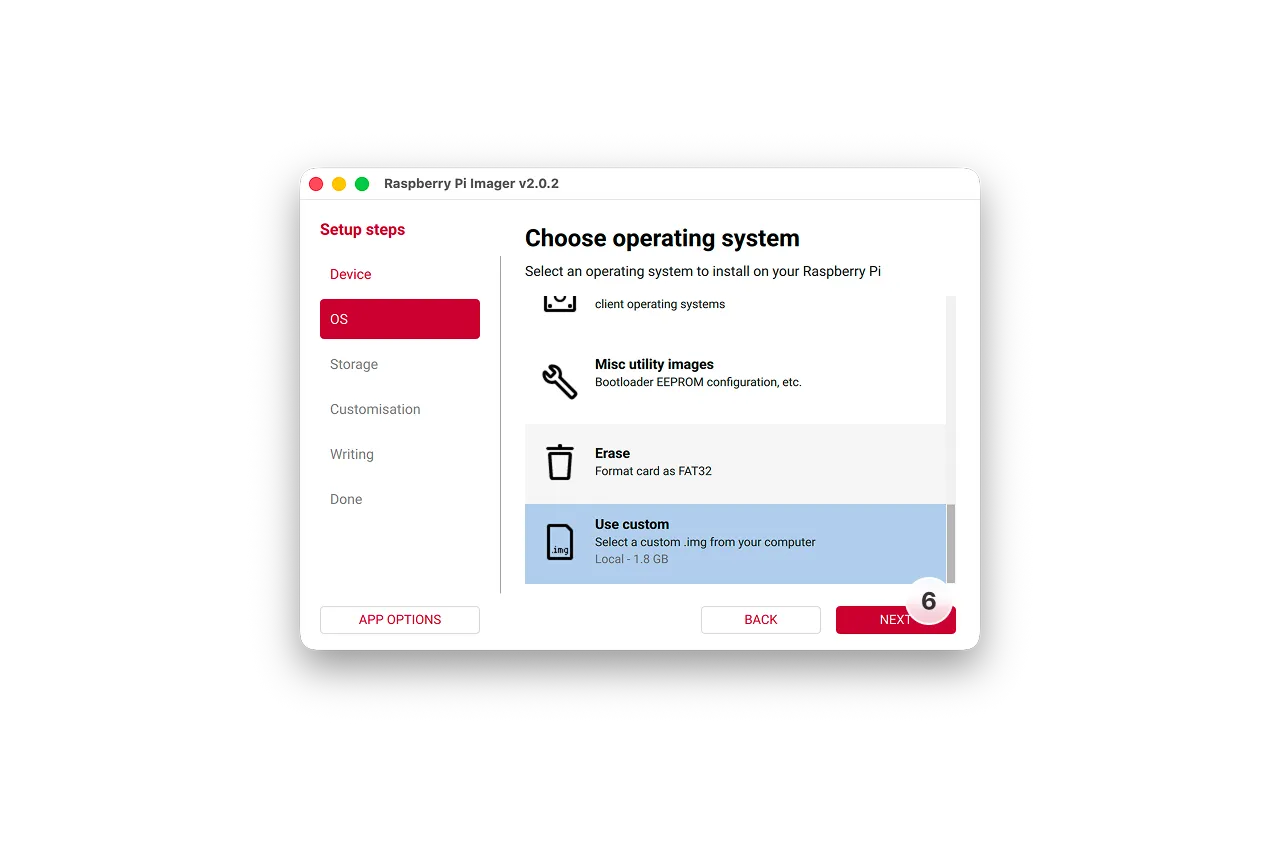
- In the OS tab, click Use custom and select the downloaded image file, then click Next
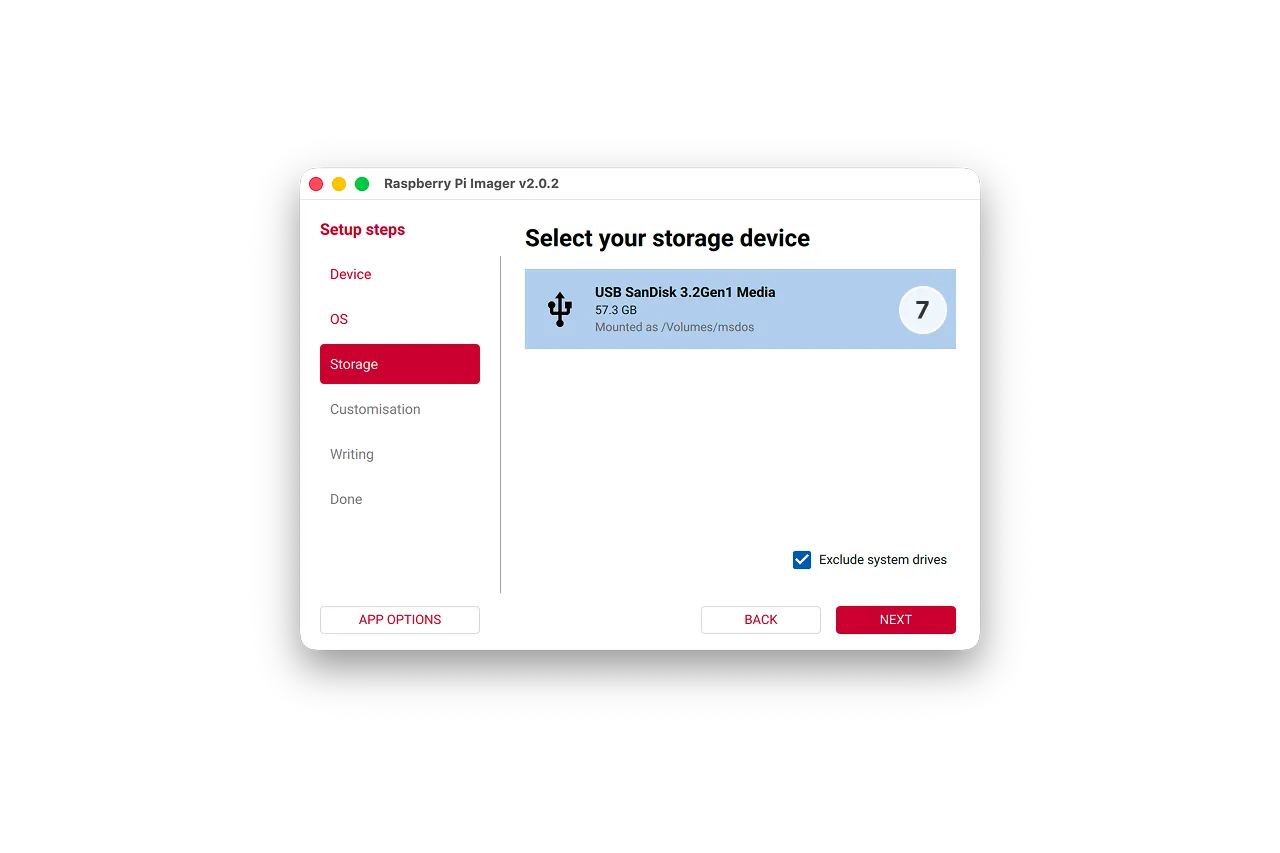
- In the Storage tab select your flash drive and click Next
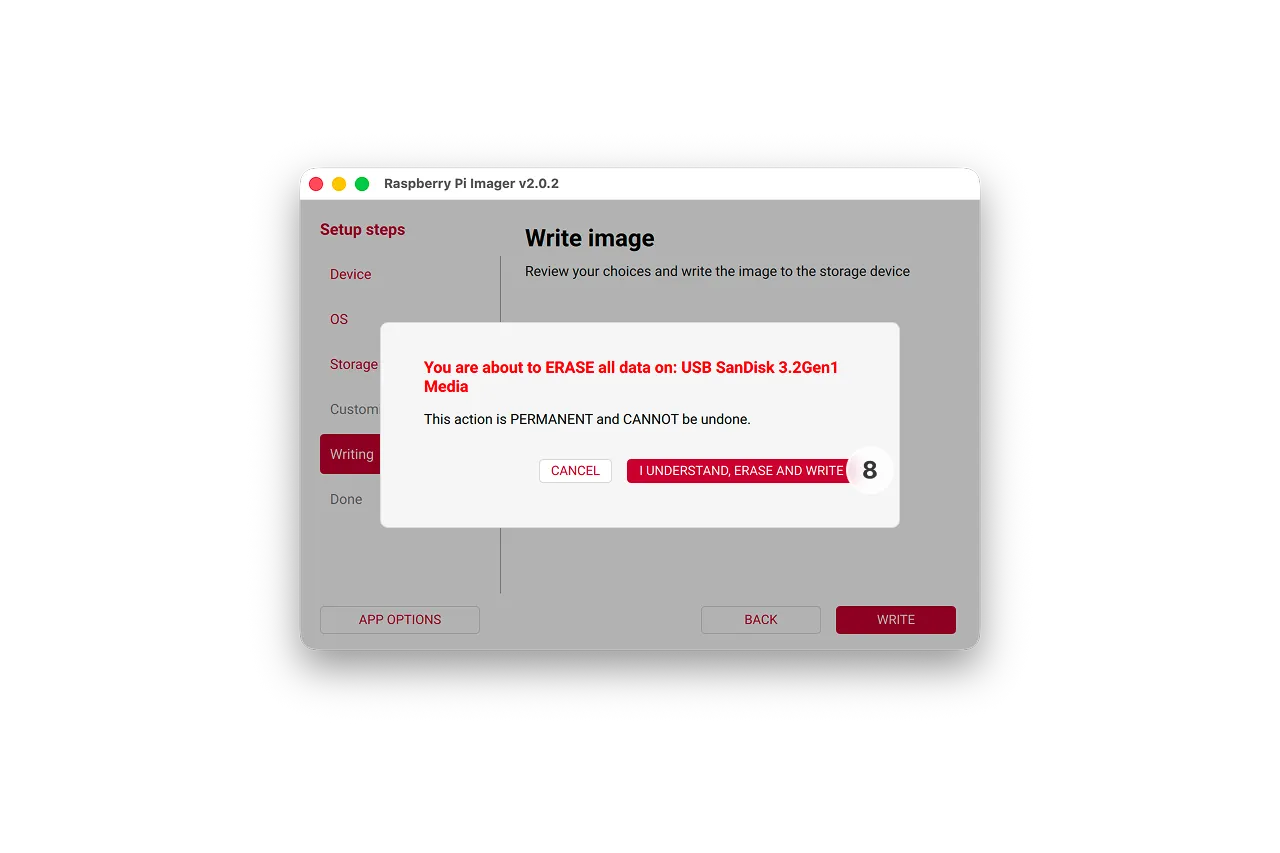
- Select I understand when warned that the flash drive will be erased, and approve any OS warnings
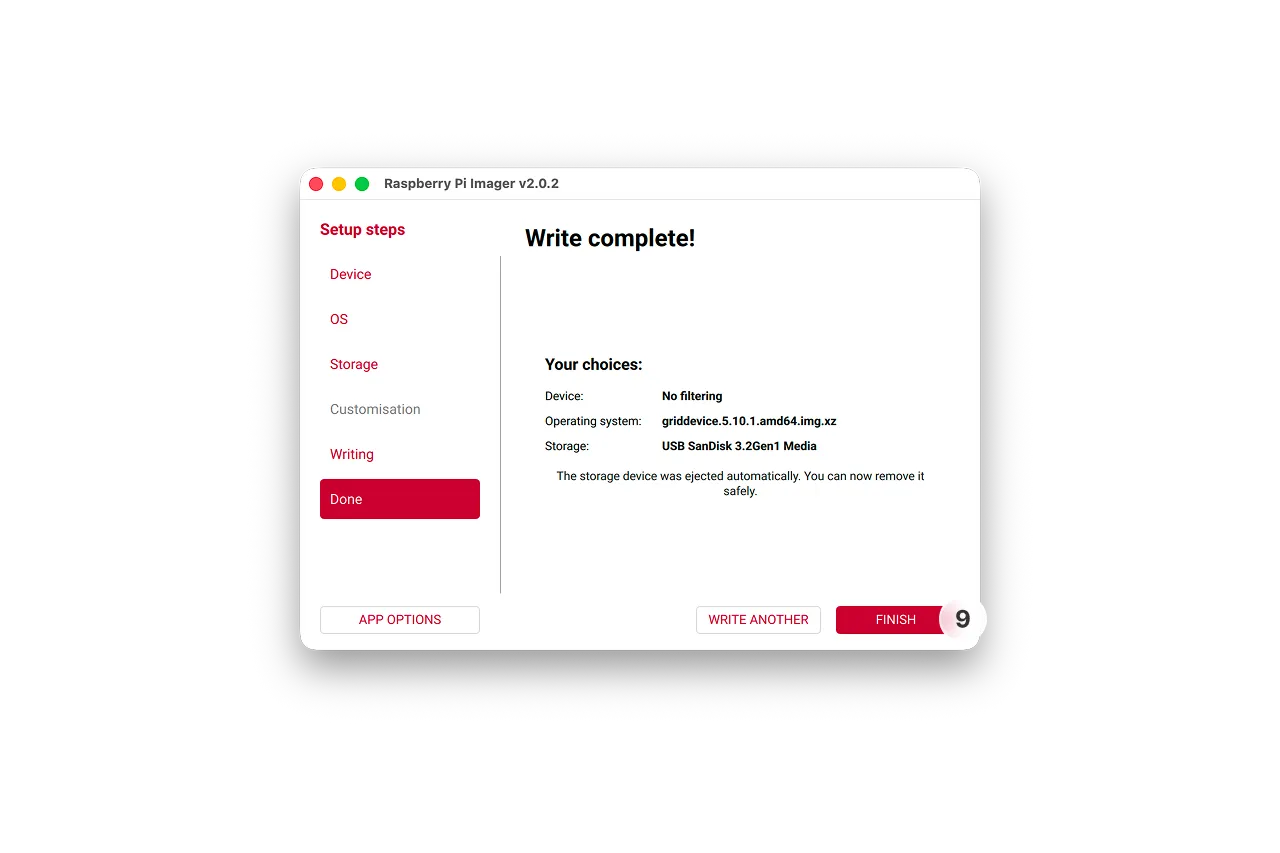
- Wait until the flashing process is complete and click Finish
How to install PhyOS on a device
Section titled “How to install PhyOS on a device”- Prepare the USB flash drive as previously instructed
- Insert the USB flash drive with PhyOS to the device, make sure no other USB storage devices are inserted
- Make sure you have a keyboard connected and power up the device
- Press the F10 key (may differ depending on the device) while device is loading in order to enter the boot menu, then select your USB drive as the first boot device
- Installer will load, and ask you to confirm the installation. Type in “yes” and hit enter, wait for the installation to complete
- Once complete, you will be prompted to reboot the device and remove the installation media
- Device will now boot into PhyOS